AI Image Upscaler: It happens to every content team. The only good photo of an event, a product or a person is a small file pulled from an old post or a chat app. Now it needs to fill a website header, a slide or a printed flyer. Blow it up the old way and it turns soft and blocky.
An AI image upscaler offers a better option. It enlarges a photo while trying to keep edges crisp and textures believable. But it is not magic, and the final file is only as useful as the export you can get from it. Here is how to approach both sides.
What an AI image upscaler can and cannot do
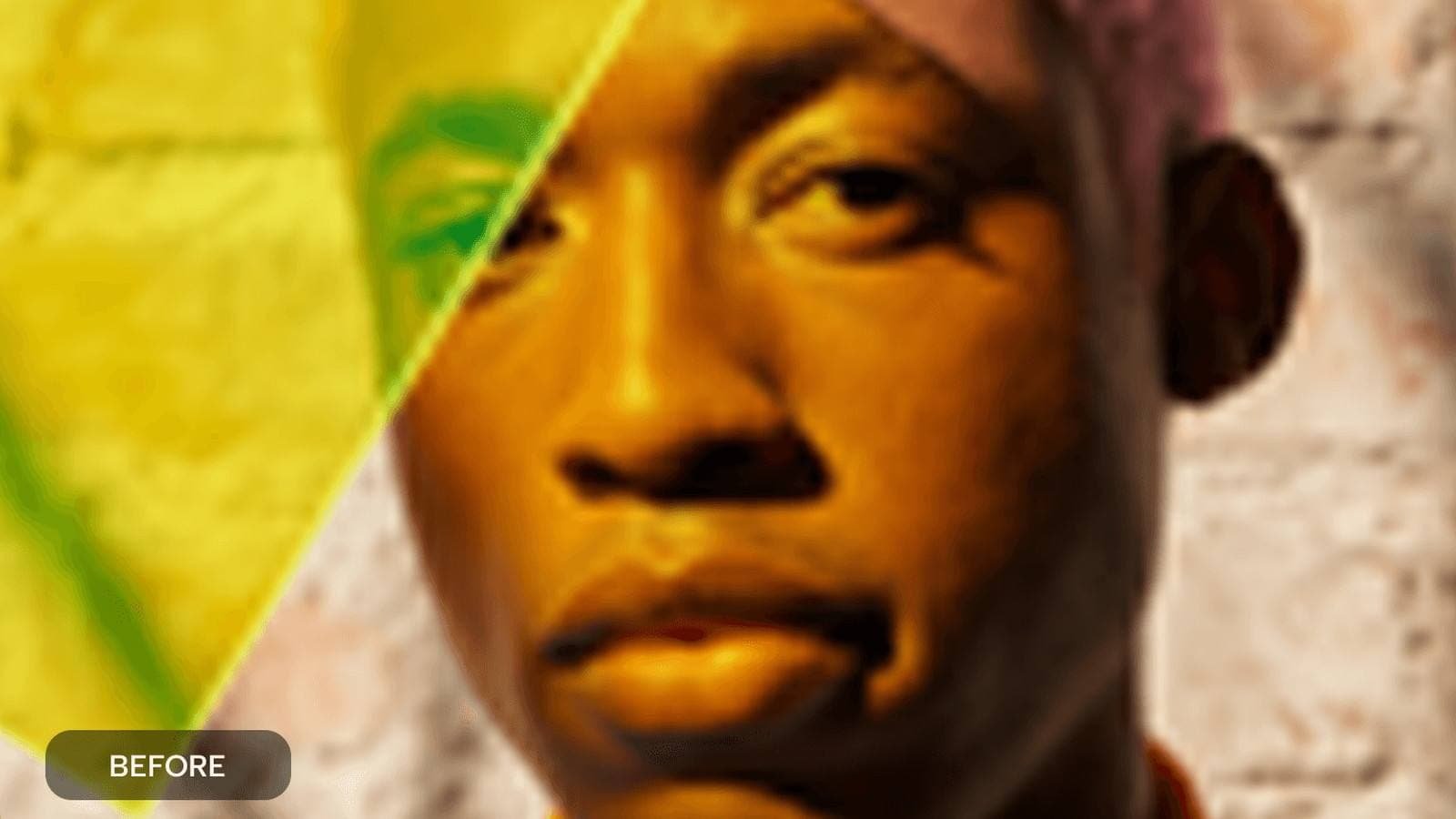
Traditional resizing simply stretches existing pixels, which is why large versions look blurry. An upscaler uses a trained model to predict what the missing detail should look like, producing a sharper result at a larger size.
That prediction is the important word. The tool can make a file more usable for a bigger layout, but it cannot reliably recover detail that was never captured. Sometimes it fills the gap with invented detail, such as eyelashes, hair strands or letters that look plausible but do not match reality.
CapCut’s AI image upscaler guide makes this point clearly and recommends treating upscaling as a controlled delivery step, not a quick fix.
A reliable upscaling workflow
- Keep the original. Duplicate the file and store an untouched copy.
- Know the final size. Decide the canvas, crop and viewing size before you upscale.
- Apply one pass. Run a single, controlled upscale rather than several in a row.
- Compare at the same size. View the original and result side by side at matching display size.
- Zoom in on details. Check faces, edges, text and textures at higher magnification.
- Place it in the real layout. See how it looks in the actual design, not just on its own.
- Export and inspect. Open the downloaded file and check it at full size.

What to look for after upscaling
Upscaling problems tend to fall into four groups:
- Faces: eyes, mouths or noses that have changed shape, skin that looks waxy, or hair that has been invented.
- Edges: bright halos, ringing lines or doubled outlines around objects.
- Textures: fabric, wood or foliage turned into a uniform pattern.
- Text: letters that look real at a glance but spell the wrong thing.
If important text in the photo has warped, the safest fix is to rebuild it as an editable text layer instead of trusting the upscaled pixels.
Do not forget the export
You can produce a beautiful upscaled image and still end up with a file you cannot use. Many tools let you edit freely but apply limits when you download. Depending on your plan and region, a free export might be capped at a lower resolution, carry a watermark or offer limited formats.
For upscaling, the resolution cap is the critical one. There is no point upscaling a photo to a large size if the free export brings it back down. Before you rely on any tool, check its free AI photo editor export limits with a test file. Download it, confirm the pixel dimensions, and zoom into the corners for branding.
Choosing the right source
The better the input, the better the upscale. A few habits help:
- Use the original file rather than a screenshot or a copy saved from social media.
- Avoid photos that have already been heavily compressed or sharpened.
- Crop to the final composition first, so the upscaler works only on what you need.
- If a photo is badly blurred, consider whether a different photo or a reshoot would serve the layout better.
It also helps to think about viewing distance. A banner seen from across a room or a slide on a large screen does not need the same fine detail as a print held in the hand. Matching the upscale to how people will actually see the image keeps you from pushing the tool harder than necessary, which is when invented detail tends to appear.
Frequently asked questions
How much can I enlarge a photo with an AI image upscaler?
It depends on the source and the tool’s options. Small enlargements usually look natural, while very large jumps are more likely to show invented detail. Always check the result at full size.
Will upscaling fix a blurry photo?
It can improve mild softness, but it cannot recover detail that was never captured. Heavily blurred photos often look artificial after upscaling.
Why is my exported file smaller than expected?
Your plan may cap export resolution. Run a test export and check the pixel size before upscaling important images.
Final thoughts
An AI image upscaler is one of the most useful tools for working with imperfect source material, provided you stay critical. Upscale once, inspect faces, edges, text and textures, and confirm that your export keeps the size you worked for. That is how a small photo earns its place in a big layout.